
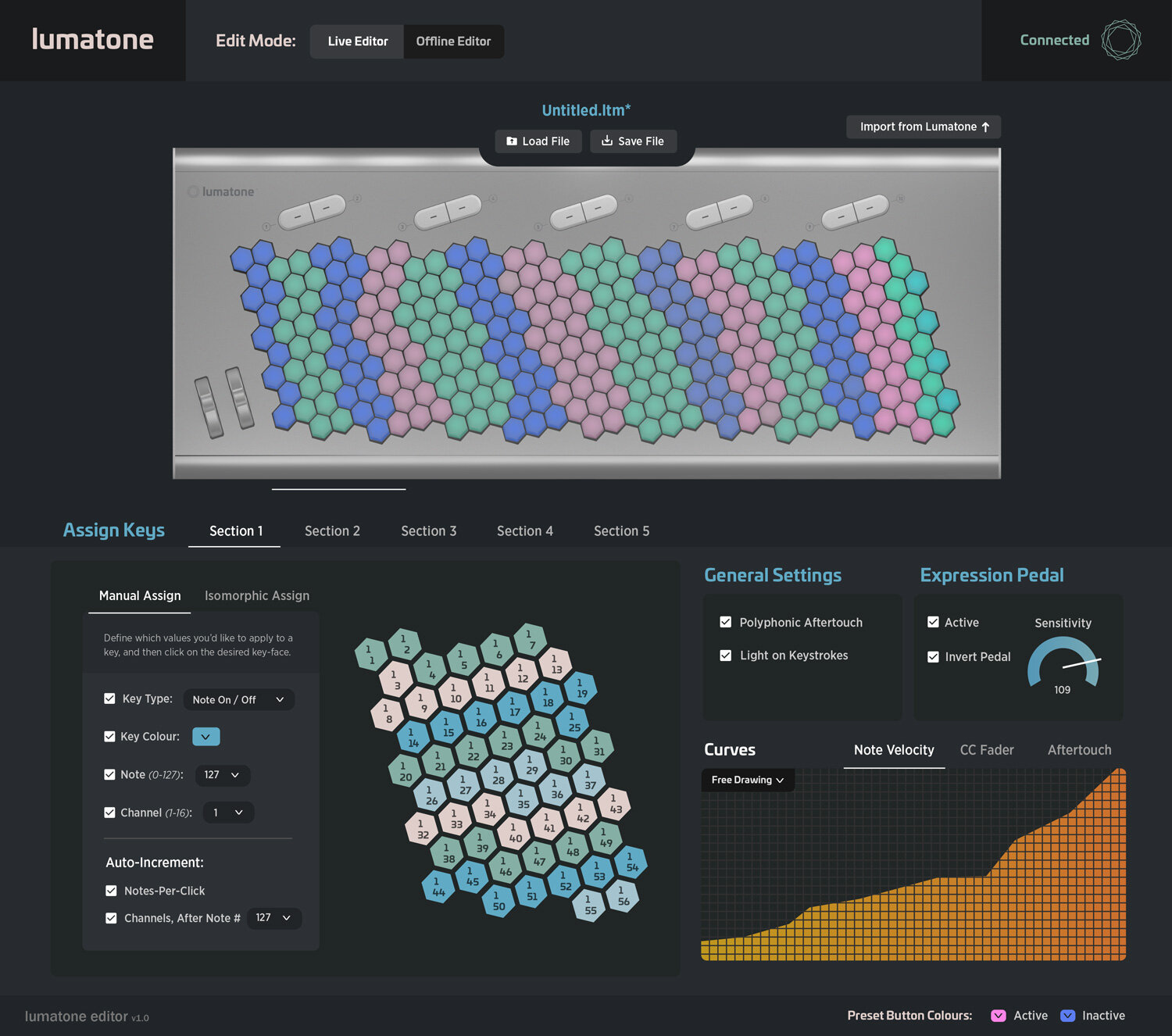
Lumatone Editor 1.2 Beta
Introducing the new Lumatone Editor. More colour, more feedback, and your favourite synths built right in.
Download Now:
MacOS | Windows
Lumatone Editor 1.2 is free software that allows you to create and modify mapping files for Lumatone, and save them as presets on your instrument. This is the biggest update to Lumatone Editor yet, and it’s a public beta, so if you run into anything unexpected, please let us know!
What’s new in 1.2:
Global colour – adjust the brightness, hue and temperature of your whole layout at once.
Colour replace – swap one colour for another everywhere it appears in your layout.
Isomorphic mode – set your scale size and step directions, and assign colours to scale degrees to build an isomorphic layout.
Better colour preview – the Lumatone graphic now shows colours the way the LEDs really look.
Live feedback – keys light up in the preview as you play, with a live velocity meter and MIDI message readout.
MIDI inspector – a pop-out window with your MIDI history and detailed metering for aftertouch, pitch bend and mod wheel.
Plugin host – load your favourite softsynth and play it right in the app.
Layout titles and image export – name your layouts, and save them as PNG files to share.
We’ve also improved screen reader support, fixed an occasional crash when reconnecting your Lumatone, and stopped the app from overwriting your preset button light colours.
Linux users: Lumatone Editor 1.2 isn’t available for Linux yet. Please use Lumatone Editor 1.0.2 under Previous Versions below.
Latest Firmware
The most recent version of the Lumatone firmware is 1.4.
To update your Lumatone, download the firmware below, click “Settings” in Lumatone Editor, and select the firmware file.
What’s new in 1.4:
No more frozen octave boards – fixes a bug in firmware 1.2 and 1.3 where some octave boards could freeze in rainbow mode while powering up.
Key diagnostic mode – see each key’s sensor (ADC) value as a colour, right on the keys. To turn it on, hold down both preset buttons on an octave board while powering up to enter calibration mode. Then hold down either preset button and press any key. Press both buttons to exit. It is completely normal for a key’s colour to oscillate from one colour to another; it just indicates the sensor is also oscillating between those ranges.
Rainbow mode – press preset button 1 ten times in a row to switch to rainbow mode from any preset. Press it ten more times to go back.
Calibration without Lumatone Setup – hold down both preset buttons on an octave board while powering up to go straight into calibration mode.
Try it: key diagnostic colours
Drag the slider down to press the key, or drag the dot along the force curve. The key shows the colour you’ll see in diagnostic mode at each point in its travel.
Key travel
0.0 mm
Sensor value (ADC)
0
Key colour
Red
Pressure needed
Light pressure that increases very gradually
All values are approximate and will vary from key to key. The force curve shows the general feel of the key, estimated from its design specs; pressing closer to the back of the key takes a little more force. It is completely normal for the colour to oscillate from one colour to another; it just indicates the sensor is also oscillating between those ranges.
Latest Default Presets
Download our March 2025 Preset Defaults.
To add these presets to your Lumatone, load each preset into Lumatone editor, and hold down the desired preset button location for 3 seconds to save it. Our default presets include 10 presets that are numbered according to how we ship Lumatones, but feel free to mix and match as you like!